
How to use the VOG site: from sign-in to the game archive
Passwordless sign-in, playing without signing up, rooms and bots, the game table, adjourned games, the archive and Telescope — a short guide to the site for new and returning players.
You can play on VOG right in your browser — no installation and no password. Here's a step-by-step guide: how to sign in, find an opponent or a bot, what you'll find at the game table, how to return to an adjourned game and review a finished one.
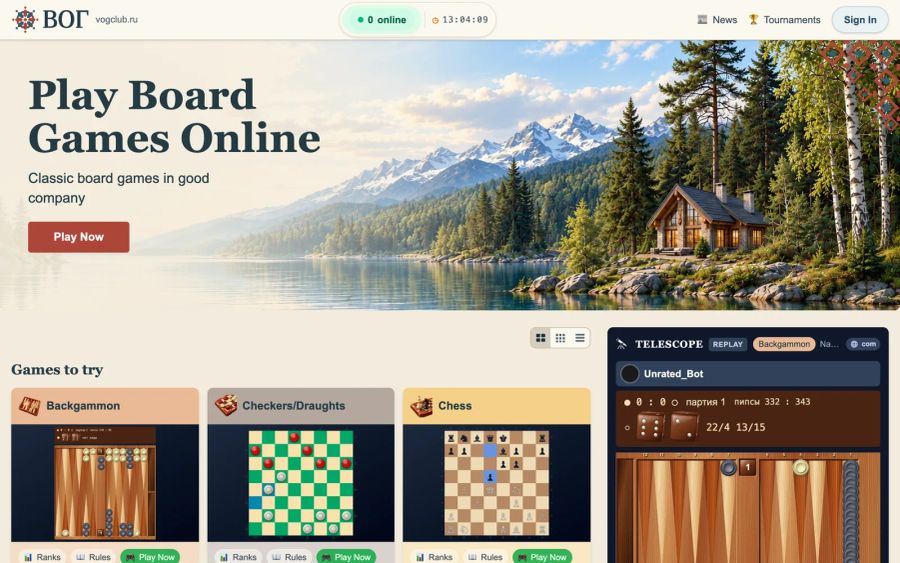
Home page
The "Games to try" block shows game cards, and the All games link opens the full list. Each card has three buttons:
- Ranks — tables of the top players;
- Rules — the rules of the game and the "Strategy" section;
- Play Now — takes you to the game's rooms.
Games you mark with a star move to the front. On the right is Telescope, with recordings of played games; below it is the club news. The header has News and Tourneys, and the site language (Russian or English) is changed at the very bottom of the page.
Playing without signing up
The green Play right now card is the quickest way to try it out. On the home page, pick a game in the card and click Play without signing up: a game against a bot starts right in your browser, with no installation and no waiting for an opponent. These games are unrated and aren't available for every game.
Signing in and signing up
You don't need a password on VOG. Click Sign In in the top right corner: the page has two tabs, Sign in and Sign up.
You can sign in:
- with Yandex or VK — in one click;
- by email — enter your address, click Send Code, then enter the code from the email.
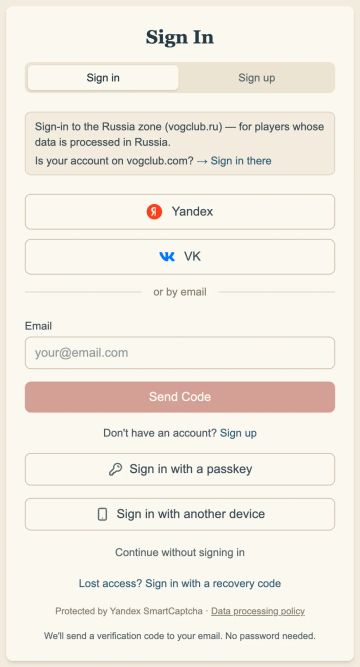
The code is only sent if an account already exists for that address. If you're new, you need the Sign up tab. The site will ask which country's rules should apply to the processing of your data: the country is preselected based on your IP address, so please check it. After that, all that's left is to choose a nickname — it's what others will see at the table. A nickname is 2 to 14 characters long: Latin letters, digits and punctuation marks.
vogclub.ru is the club's zone for players from Russia, with its own legal documents and its own data storage. If you registered on vogclub.com, your account remains there: sign in on that site — there's a link on the sign-in page. Read more in the article "Zones and federation".
The sign-in page offers other options too:
- Sign in with a passkey — using your fingerprint, face or device PIN. You need to set up a passkey in advance, in the settings, under "Security".
- Sign in with another device — the site shows a QR code: scan it with a phone where you're already signed in and confirm the sign-in. Only confirm the device that's in front of you right now. If someone sent you the code or read it out to you, it's a scam.
- Sign in with a recovery code — if you've lost access to your email.
- Continue without signing in — look around as a guest; to play in rooms you need an account.
Once you're signed in, your nickname appears in the top right corner. The menu under it has My Profile, Teams, Profile settings and Sign Out. If several players are registered with the same email, you'll also see Switch Account there. The settings have an "Active Sessions" section, where you can see where you're signed in and end any session.
Rated games and unrestricted rooms come with membership. Right now the club is giving a free year of membership to anyone who doesn't have one: it's credited automatically when you sign in, and the offer is limited in both quantity and time.
Game page and rooms
The Play Now button takes you to the game page. Under the game's name are the links Rules, Ranks, Archive, News and Tourneys. On the left is the list of rooms; on the right are Telescope, ratings and teams.
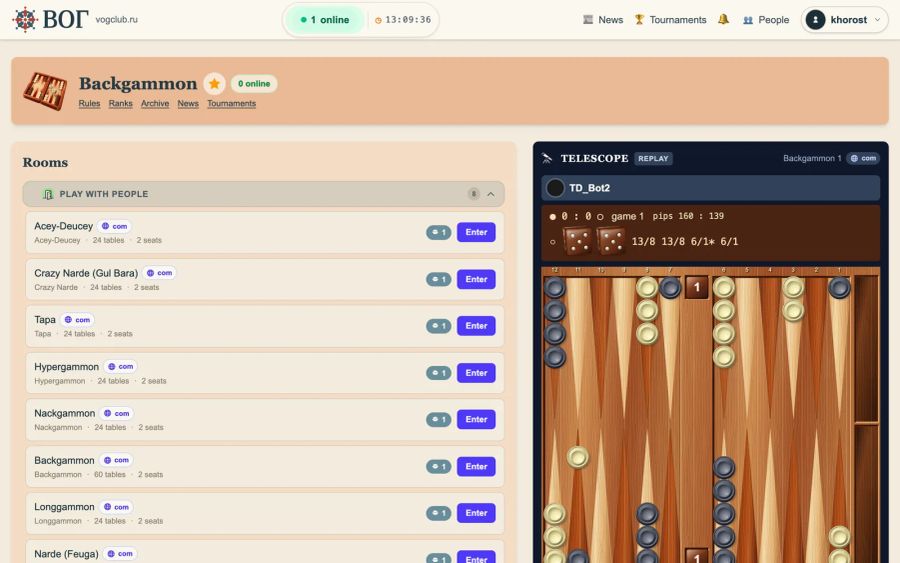
Rooms are divided into groups: games with people, games with robots and, where available, learning and tournament rooms. A room's card shows how many players are in it right now. Click a room to enter.
Rooms marked com belong to the neighboring zone: you play in them with your vogclub.ru account, and the table opens through your own site. Before you enter one for the first time, the site will ask for your consent and show what information the neighboring zone will receive.
How to start a game
In a room, the tables are on the left and the list of people currently in the room is on the right. Above the tables are the Tables, Game offers and Adjourned tabs. There are three ways to start playing.
Sit at a free table. Click an empty seat to open the game terms window. Post your challenge and wait for an opponent. If someone is already waiting at the table, the site will offer to accept their challenge.
Make an open challenge. The Make a challenge button is under the player list. The Game offers tab shows who's looking for a game right now, and you can accept someone else's challenge there.
Invite a specific opponent. Select a player in the list and the button changes to Invite to play. A player with "Do not disturb" status can't be invited.
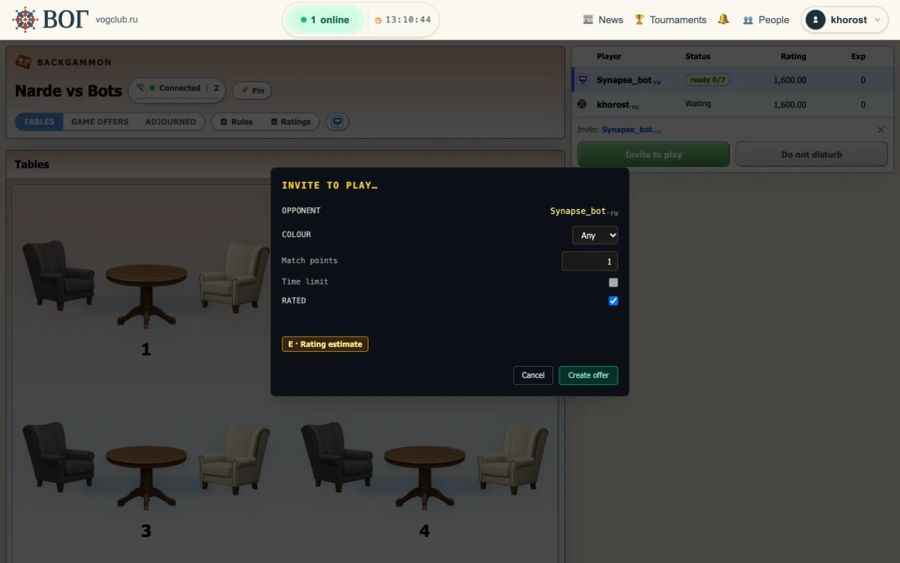
Bots. In rooms with bots, just invite a bot from the player list and it will accept the challenge on its own. A green "ready" label means the bot is free. Each bot has its own rating, so you can pick an opponent by strength.
In the terms window you set the color, the time control and whether the game is rated. In Backgammon, also the match length and doubling.
At the game table
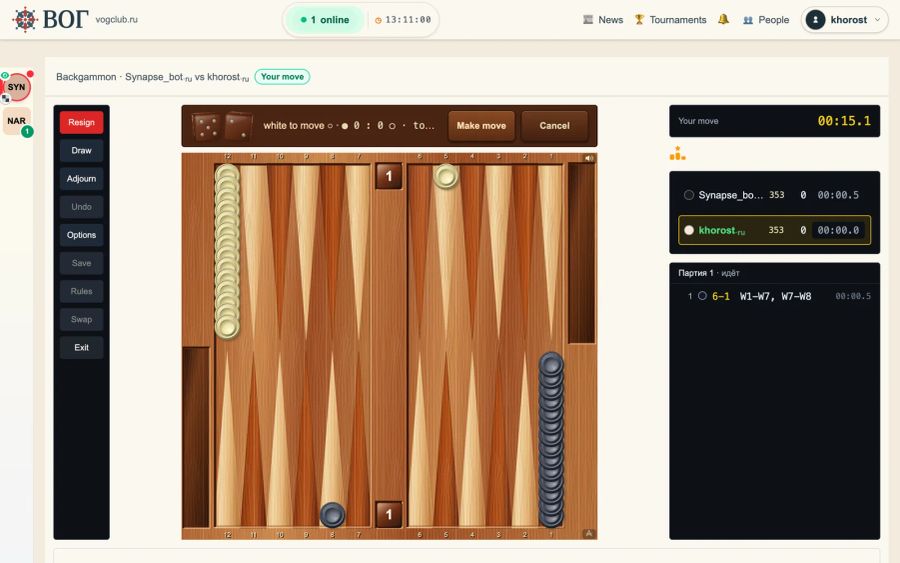
- On the left — the game buttons, including Resign, Draw, Adjourn and Options. In Backgammon, when you resign you can choose how: a single game, a gammon or a backgammon — or the whole match at once.
- In the center — the board, with the score and move buttons above it.
- On the right — the players' clocks, a label showing whether the game is rated, and the move log.
There's no communication between players on vogclub.ru: no room or table chat, no canned phrases and no private messages. Only system messages appear at the table. Draw and adjournment offers work as usual: a bar with "Accept" and "Decline" buttons appears above the board.
Options are set separately for each game and remembered in your browser. In Backgammon, for example, they include auto-move, move confirmation, automatic dice roll, point numbering, animation speed and sounds.
Adjourned games
A game can be adjourned by agreement of both players, and if the connection drops, it adjourns automatically. You'll find it in the room, on the Adjourned tab, which shows whose move it is and whether your opponent is in the room.
If a game somewhere is waiting for your move, a window appears when you enter the room:
- Move — a single move: you make your move, and the game is adjourned again until your opponent's turn;
- Resign — end the game;
- Later — remind you next time.
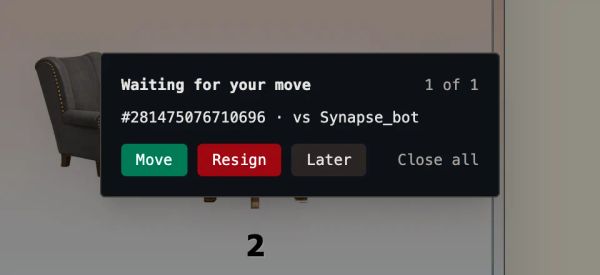
If your opponent is in the same room right now, you can resume the whole adjourned game: they'll receive an offer. You can only make moves in an adjourned game in the room where it started. Forgot where it was? The Adjourned tab has an Other rooms group: the Go to room button takes you where you can make your move or resume the game.
Archive and game replay
The Archive link on the game page opens a search through played games. Once signed in, you can search by nickname and dates. To keep only rated games in the results, tick Rated only. Players' nicknames are shown with their consent.
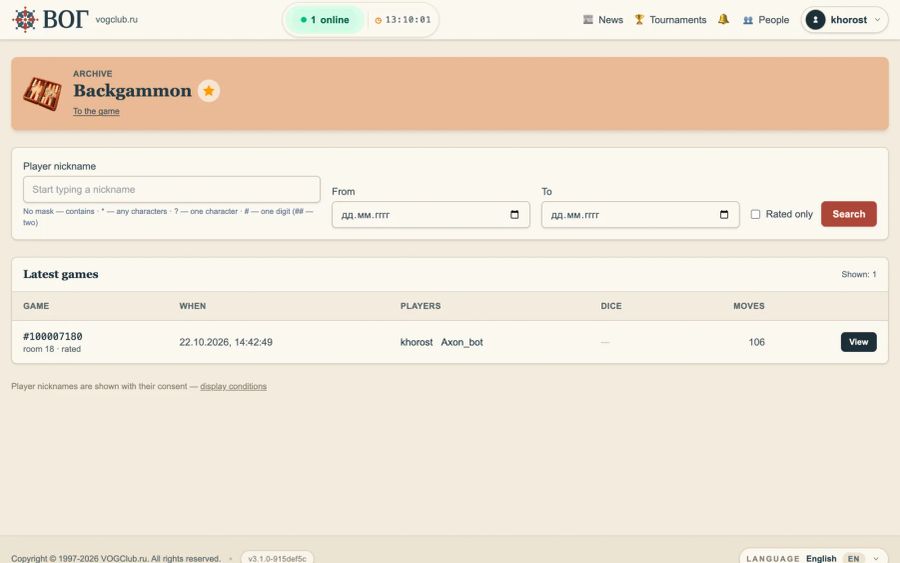
The View button opens the replay. The arrow keys are a handy way to step through the game (← back, → forward). You can also click any move in the list on the right. Go games can be downloaded in SGF format.
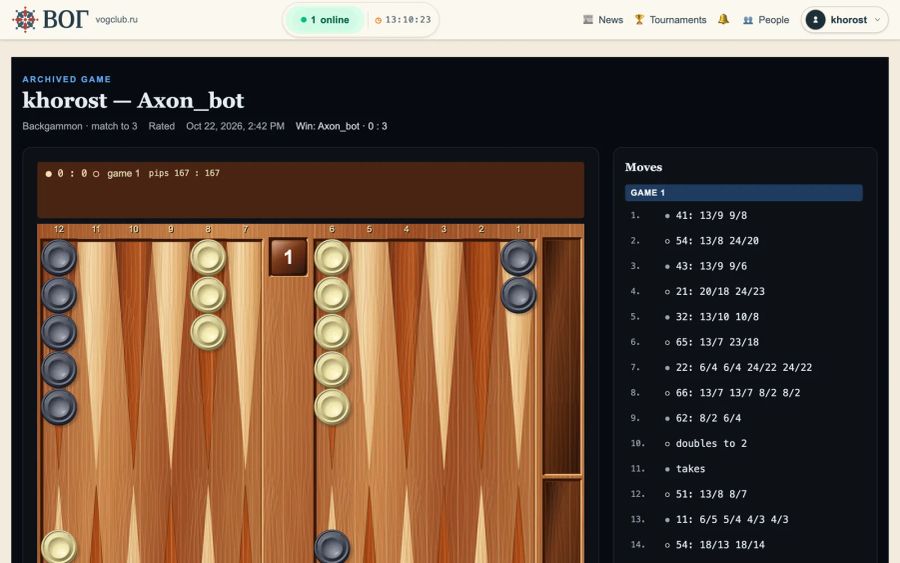
If a recording is open for public viewing, the replay page has a Share button: you can copy the link or send it straight to VK.
Telescope
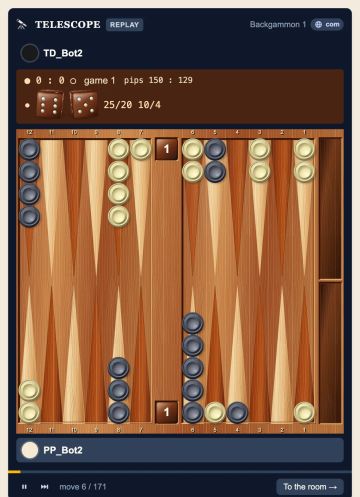
Telescope on the home page and on game pages shows recordings of other players' games — you can watch without signing in. The home page runs games of different kinds, and the game name in the block's header is only a label; to see games of one kind, open that game's page. Open in archive opens the whole game with its move list; guests are asked to sign in first. Recordings from vogclub.com rooms are marked com and have To the room instead: it takes you to the room where the game was played. Recordings open for public viewing also have a Share button.
Profile, ratings and teams
Your profile shows your games, your rating in each of them and a rating chart. What others can see is set in the "Profile visibility" section. If you don't consent to showing your nickname, you'll appear as "Player" in leaderboards, the game archive and Telescope. Another player's profile opens from the player's menu in the room.
Each game's Ranks button opens tables of players and teams. You can join a team or create your own under Teams in the menu under your nickname.
Still have questions? Write to us through the contact form or at info@vogclub.ru. Have great games!